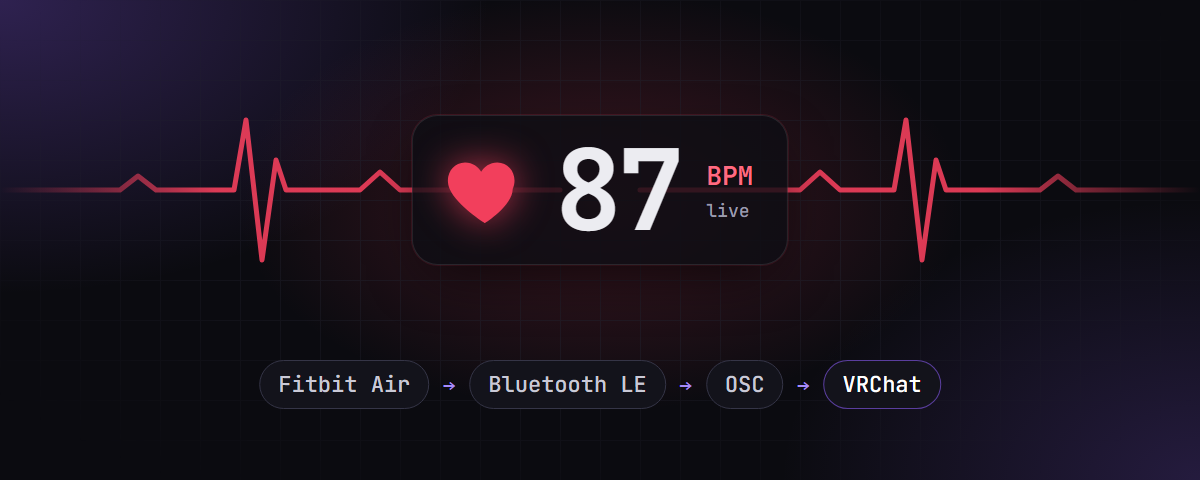
Show your live heart rate on your VRChat avatar without a phone app, without HypeRate/Pulsoid and without any account. A small program on your Windows PC reads the heart rate straight from the Fitbit Air over Bluetooth LE and sends it to VRChat via OSC. It runs as a tray icon, can start with Windows or SteamVR, and can also show the heart rate in the VRChat chatbox or as an OBS overlay for streaming.

| Band | Fitbit Air (Google). Other bands that expose the standard Bluetooth Heart Rate Service (0x180D) should work too, but only the Fitbit Air was tested. |
| Phone | The Google Health app (Android or iPhone), only once, to switch on heart-rate sharing on the band. After that the phone can stay in another room. |
| PC | Windows 10/11. Nothing else for the .exe; for running from source, Python 3.11 or newer from python.org. |
| Bluetooth | A real Bluetooth LE adapter. Tested and recommended: TP-Link UB500 (Realtek RTL8761B, ~10 €). Cheap no-name sticks that identify as CSR8510 A10 are counterfeits: they go deaf after ~15 s of scanning, cannot scan while paired and drop the connection. They do not work reliably. |
| VRChat | OSC enabled (Action menu → Options → OSC → Enabled) and an avatar with a heart-rate prefab, see Avatar parameters. |
- Download
fitbit-osc.exefrom the latest release. - Put it in a folder of its own, e.g.
C:\Tools\fitbit-osc\. Settings and the log are written next to it. - Double-click it. A heart icon appears in the system tray (it may hide behind the ^ arrow).
Windows SmartScreen may warn the first time because the file is not code-signed: click More info → Run anyway.
Each release also lists the file's SHA-256 checksum (fitbit-osc.exe.sha256) if you want to verify it.
- Download this repository (green Code button → Download ZIP) and unpack it, e.g. to
C:\Tools\fitbit-osc. Avoid a path inside Program Files or a cloud-synced folder. - Double-click
install.bat. It creates a private Python environment in.venvand installs the dependencies (bleak, WinRT, pystray, pyopenvr, zeroconf). Takes about a minute and needs internet once. - Start with
start-tray.bat(tray icon) orstart.bat(console window, to watch the log).
Either way: set up the band in Google Health (next section). If you use VRCOSC with its HypeRate or Pulsoid module, disable that module, otherwise two programs write the same parameters.
The Fitbit Air only broadcasts its heart rate over Bluetooth while heart-rate sharing is switched on. This is a setting stored in the band itself; the phone is only needed to flip it. Google documents the feature as "Share your real-time heart rate with fitness equipment & apps" (Google Health help); the bridge is just another piece of "equipment" to the band.
Android
- Open the Google Health app.
- Top left, tap Connections, then your Fitbit Air.
- Tap Share heart rate, then Get started.
- On the same screen switch Always visible on.
iPhone
- Open Google Health, tap the device icon, then your Fitbit Air.
- Scroll to Share heart rate and switch Always visible on.
What the two switches do
| Setting | Effect |
|---|---|
| Share heart rate | The band starts advertising the Bluetooth Heart Rate Service. Without it the PC cannot see the band at all (No band seen in the log). |
| Always visible | The band keeps sharing on its own, also when Google Health is closed and after the phone goes to sleep. Without it the band only shares while Google Health is running a sharing session, so the PC loses it as soon as you close the app. Switch it on. |
Good to know
- One listener at a time. The band shares its heart rate with one device only. Close the HypeRate or Pulsoid app on the phone (or uninstall it) and do not connect the band to a treadmill or bike at the same time, otherwise the PC never gets a turn.
- Pairing happens on the PC, not on the phone. When the bridge sees the band for the first time, Windows pairs with it. The bridge accepts the pairing request itself; you do not have to click anything. The phone may show a hint like "Select 'Fitbit Air' on DESKTOP-XXXX" at that moment: that is the band waiting for the PC, and the bridge answers within a few seconds.
- Leaving the room is fine. If the paired band does not answer, the bridge scans briefly. Band nowhere to be seen: it keeps the pairing and retries every few seconds, up to every 30 s, so the band reconnects on its own when you come back.
- The band changes its Bluetooth address from time to time (a privacy feature). If the scan shows the band under a new address, or the paired connection keeps failing although the band is right there, the bridge removes the old pairing and pairs again. The address also changes when you switch Share heart rate off and on, which is the standard fix when pairing keeps failing.
- 0 BPM means the band is not on the wrist. The band still sends values while lying on the desk, just zeros. The avatar then shows the heart rate as inactive until a real pulse arrives.
- Battery. Google notes that real-time sharing costs battery, so expect the band to need charging a bit sooner with sharing permanently on. The Fitbit Air does not report its battery level over Bluetooth; for bands that do, it shows up in the tray and as an avatar parameter.
- The band keeps syncing with the phone as usual; sharing only adds a second Bluetooth listener.
The heart icon in the system tray is grey while no band is connected and red while the heart rate is flowing. Hover over it for the current BPM. Right-click for the menu:
| Menu item | What it does |
|---|---|
| status line | No band connected / Band connected, plus the battery level if the band reports it. |
| Show in VRChat chatbox | Also shows "❤ 72 BPM" in the VRChat chatbox every 3 s. |
| OBS overlay | Serves a small heart-rate page for OBS, see OBS overlay. |
| Open overlay in browser | Opens that page, handy to copy the URL. |
| Start with Windows | Starts the bridge in the tray when you log in. |
| Start with SteamVR | Lets SteamVR start the bridge, see Start with SteamVR. |
| Settings file | Opens config.json in your editor, see Settings. |
| Open log | Opens fitbit-osc.log. |
| About / Quit | Project page / stop the bridge. |

From source, start start.bat once so you can watch the log; with the .exe, use Open log in the tray menu.
With sharing on and the band on your wrist you should see this within about 20 seconds:
fitbit-osc 1.1.0
Sending OSC to 127.0.0.1:9000 (port from OSCQuery once VRChat runs)
Scanning for band (is heart-rate sharing enabled on the band?)
Band seen: 5D:DC:7E:7B:6E:3C Fitbit Air RSSI -52
Pairing with 5D:DC:7E:7B:6E:3C
Pairing request, kind 1 - accepting
Pairing status 0 (0 = paired)
Heart rate subscribed
BPM 72

From then on the band is paired with Windows and every later start connects directly, without a scan
(Band is paired (...), connecting directly). If the band disconnects, the bridge reconnects on its own. If the
Bluetooth adapter is unplugged or the radio is switched off, it logs Bluetooth error and retries every 10 s
instead of exiting.
The tray switches are saved in config.json next to the program (or in %LOCALAPPDATA%\fitbit-osc if that
folder is not writable). You can also edit it by hand; restart the bridge afterwards. Missing keys use the
defaults:
{
  "ip": "127.0.0.1",
  "port": "auto",
  "name": "fitbit",
  "min": 0,
  "max": 255,
  "chatbox": false,
  "overlay": false,
  "overlay_port": 8765
}| Key | Meaning |
|---|---|
ip, port |
Where OSC goes. "auto" asks VRChat for its OSC port via OSCQuery and falls back to 9000, so it also works when VRChat was started with --osc=.... A number fixes the port. |
name |
Part of the band's Bluetooth name. The scan accepts any heart-rate device, but reconnecting to an already paired band goes by this name, so use e.g. "polar" for another brand. |
min, max |
Range for HRPercent / Normalised. With 40 and 200, 40 BPM is 0 % and 200 BPM is 100 %. |
chatbox, overlay |
Same as the tray switches. |
overlay_port |
Port of the OBS overlay page. |
Every setting can also be given on the command line for one run, which wins over the file:
--ip 127.0.0.1  --port auto|9000  --name fitbit  --min 40 --max 200  --chatbox  --overlay  --overlay-port 8765
--demo               no band: send a synthetic pulse, handy for testing the avatar
--tray               tray icon instead of console (always on for the .exe), log goes to fitbit-osc.log
--follow-steamvr     exit ~20 s after SteamVR closes (used by the SteamVR autostart)
--register-steamvr / --unregister-steamvr     set up or remove the SteamVR autostart, then exit
--version
With the .exe, put them after the file name in a shortcut, e.g. fitbit-osc.exe --chatbox. From source:
start.bat --chatbox.
Tick Start with SteamVR in the tray menu. This registers the bridge as a SteamVR overlay application with autostart, the same mechanism VRCOSC and other VR tools use. From then on SteamVR launches it in the tray and it quits itself about 20 s after SteamVR closes. You can also toggle it in SteamVR under Settings → Startup/Shutdown → Choose startup overlay apps. If you move the program, untick and tick it again so SteamVR gets the new path.
From source the same works with a script, which also accepts extra options:
.venv\Scripts\python.exe register_steamvr.py --extra-args "--chatbox --max 200"
.venv\Scripts\python.exe register_steamvr.py --remove
Start with Windows and Start with SteamVR can both be on. Only one bridge runs at a time: if it is already running from the Windows autostart, the one SteamVR starts exits right away, and the first one keeps running after SteamVR closes.
Switch OBS overlay on in the tray menu. The bridge then serves a page at http://127.0.0.1:8765/ showing a
beating heart and the BPM on a transparent background. In OBS add a Browser source with that URL (width
about 300, height about 120). The page only listens on your own PC.
Optional URL parameters: ?size=96 (font size in px), &color=%23ffffff (text), &heart=%23e12d46 (heart).
When the heart rate stops, the overlay dims and shows --.
The bridge sends several parameter families at once so most heart-rate prefabs work out of the box.
All addresses are /avatar/parameters/<name>.
| Name | Type | Value | Used by |
|---|---|---|---|
VRCOSC/Heartrate/Value |
int | BPM (0–255) | VRCOSC heart-rate prefab |
VRCOSC/Heartrate/Normalised |
float | 0…1 | VRCOSC |
VRCOSC/Heartrate/Units, Tens, Hundreds |
int | digits | VRCOSC |
VRCOSC/Heartrate/Enabled |
bool | heart rate is live | VRCOSC |
HR |
int | BPM (0–255) | HRtoVRChat_OSC style prefabs |
onesHR, tensHR, hundredsHR |
int | digits | HRtoVRChat_OSC |
HRPercent, FullHRPercent |
float | 0…1 / −1…1 | HRtoVRChat_OSC |
isHRConnected |
bool | band connected | HRtoVRChat_OSC |
isHRActive |
bool | heart rate is live | HRtoVRChat_OSC |
isHRBeat, HeartBeatToggle |
bool | toggles with each heartbeat | HRtoVRChat_OSC |
HRBattery |
float | band battery 0…1, only if the band reports it | this bridge |
"Heart rate is live" turns off when no valid value arrived for 5 s, when the band reports 0 BPM or no skin contact, and when the band disconnects. Prefabs that hide the display on these parameters therefore no longer show a frozen number.
If your prefab uses other names, edit hr_params() in fitbit_osc/protocol.py; it is a handful of lines.
Remember that many prefabs also have a menu toggle on the avatar that has to be switched on.
The bridge works out of the box with the official VRCOSC Heartrate prefab (a number display with a beating heart), made by VolcanicArts:
Download VRCOSC-Heartrate.unitypackage (from the VRCOSC prefab downloads)
- Install VRCFury in your avatar project (VRChat Creator Companion).
- Install RED_SIM's free Simple Counter Shader, the prefab uses it for the digits.
- Import the unitypackage, drag the
Heartrateprefab onto your avatar (e.g. onto the chest bone) and upload. - In VRChat, switch the Heartrate toggle on in your avatar's expression menu.
The prefab only needs VRCOSC/Heartrate/Value, which the bridge sends. It is not included in this
repository because it is VolcanicArts' work; please get it from the link above.
Quick check without the band: run with --demo (e.g. start.bat --demo). It sends a synthetic pulse between
60 and 100 BPM, so you can see whether the avatar reacts before you deal with Bluetooth.
The connection sequence mirrors what the official HypeRate Android app does (scan for service 0x180D, connect, enable notifications on characteristic 0x2A37), with the things the app gets wrong fixed:
- The heart-rate packet is parsed per the Bluetooth specification: 8- and 16-bit values, skin-contact flag, energy and RR-interval fields.
- The band is paired deliberately. Without pairing the Fitbit Air disconnects after 20–30 s. Android pairs implicitly on the first protected access, Windows only on request.
- Lost connections are re-established automatically, also when Windows fails to report the drop (no measurement for 20 s counts as disconnected).
- The pairing is only removed when the band really changed its address or keeps failing in plain sight, not when it is simply out of range.
Pairing is done through the Windows Bluetooth API only, with no second connection held at the same time; a parallel connection made pairing fail and left the band invisible.
| Symptom | What to check |
|---|---|
No band seen |
Share heart rate and Always visible on in Google Health? Band on the wrist and awake (lift the arm)? HypeRate/Pulsoid app on the phone closed, no gym equipment connected? Adapter is a real Bluetooth LE adapter? |
No band seen, but the phone shows the band is sharing |
Switch Share heart rate off and on again; the band then advertises with a fresh address. Also check in Windows Bluetooth & devices whether an old Fitbit Air entry is left over and remove it. |
Pairing status 19 |
The band dropped the connection during pairing. The bridge retries; if it keeps failing, toggle Share heart rate off and on. |
Pairing status 2 (NotPaired) |
Pairing was refused. Make sure no other device holds the band (phone app, treadmill), toggle Share heart rate off and on, then restart the bridge. |
paired band unreachable (GATT status 1) |
Usually followed by a short scan. Band not in range, keeping the pairing: the band is away or asleep, nothing to do. Band is in range, trying again: the next attempt normally connects. If it keeps failing with the band on your wrist next to the PC, the adapter is the problem. |
Band reports 0 BPM / no skin contact |
Put the band on; the optical sensor needs skin contact. The avatar shows the heart rate as inactive until then. |
Bluetooth error ... retrying in 10 s |
The Bluetooth adapter is gone or the radio is off. Plug it back in; the bridge continues on its own. |
| Values arrive but the avatar shows nothing | OSC enabled in VRChat? Prefab menu toggle on? Parameter names match (see table)? Test with --demo. |
| VRChat runs on a non-standard OSC port | With "port": "auto" the log shows VRChat OSC port found via OSCQuery: ... once VRChat is running. If not, set the port by hand in config.json. |
OBS overlay could not use port 8765 |
Another program uses that port. Set a different overlay_port in config.json. |
| Connection drops every ~15 s | Almost always the Bluetooth adapter. Try a different USB port or an extension cable away from the PC case, or a better adapter. |
| Two bridges fight over the band | Only one instance runs at a time; a second start exits immediately. |
The log is fitbit-osc.log next to the program when running in the tray (tray menu → Open log).
.venv\Scripts\python.exe -m pip install -r requirements-dev.txt
.venv\Scripts\python.exe -m pytest
.venv\Scripts\python.exe -m ruff check .
.venv\Scripts\python.exe packaging\build_exe.py
The code lives in fitbit_osc/: protocol.py (packet parsing, OSC encoding, parameters, no Bluetooth),
bridge.py (state and stale detection), ble.py (Windows Bluetooth), app.py (tray and background tasks),
plus config.py, oscquery.py, overlay.py, autostart.py and steamvr.py. GitHub Actions runs the tests and
builds the .exe on every push; publishing a release attaches the .exe and its checksum automatically.
Apache License 2.0, see LICENSE and NOTICE.
You may use, change and share this project, also commercially, as long as you credit the author:
keep the NOTICE file and mention hemiize with a link to this repository
(https://github.com/Hemiize/fitbit-vrchat-osc) in your README, release notes or the about/credits screen
of your app. Changed files must say that you changed them.
Deutsch: Du darfst das Projekt nutzen, ändern und weitergeben, auch kommerziell, solange du
hemiize mit Link zu diesem Repository nennst und die NOTICE-Datei mitlieferst.