Contents
It started with a list of package names
The Meta Quest 3 is a great headset that talks to Meta a lot. Bug report uploaders, usage metrics, federated learning, an advertising ID service, promo pop-ups, URL checks that go through Meta servers. None of it is needed to play games, and most of it can be switched off over ADB once developer mode is on: pm disable-user --user 0 <package> and the service is gone.
So that's what I did. I went through the package list, read logcat, disabled what looked like telemetry and kept notes. Within one evening I had learned three things the hard way, and those three things are the reason Quest Tools exists.
Lesson one: some packages look optional and are not
com.oculus.ocms sounds like a content service you could live without. Disable it and the headset boots into passthrough with a system bar and nothing else: no home panels, no library, no universal menu. The VR shell binds an app management service inside ocms every second, and without it every panel placement times out.
com.oculus.store was worse, because nothing happens right away. After the next reboot, purchased apps suddenly showed up under unknown sources, and one of them refused to start because it was "not purchased". The entitlement database had come back empty. Re-enabling the store and com.meta.credentialsmanager and rebooting fixed it, since the full license sync only runs at boot.
Neither failure has anything to do with the package names. So the core of Quest Tools is a hand-written knowledge base, where tested facts always beat name patterns:
"com.oculus.ocms": Entry(KEEP, "Content/app management. Without ocms there are no home panels, library "
                               "or universal menu (VrShell: Placement request Timeout)."),
"com.oculus.store": Entry(KEEP, "License sync. Without the store, purchased apps disappear from the "
                                "library (\"not purchased\")."),
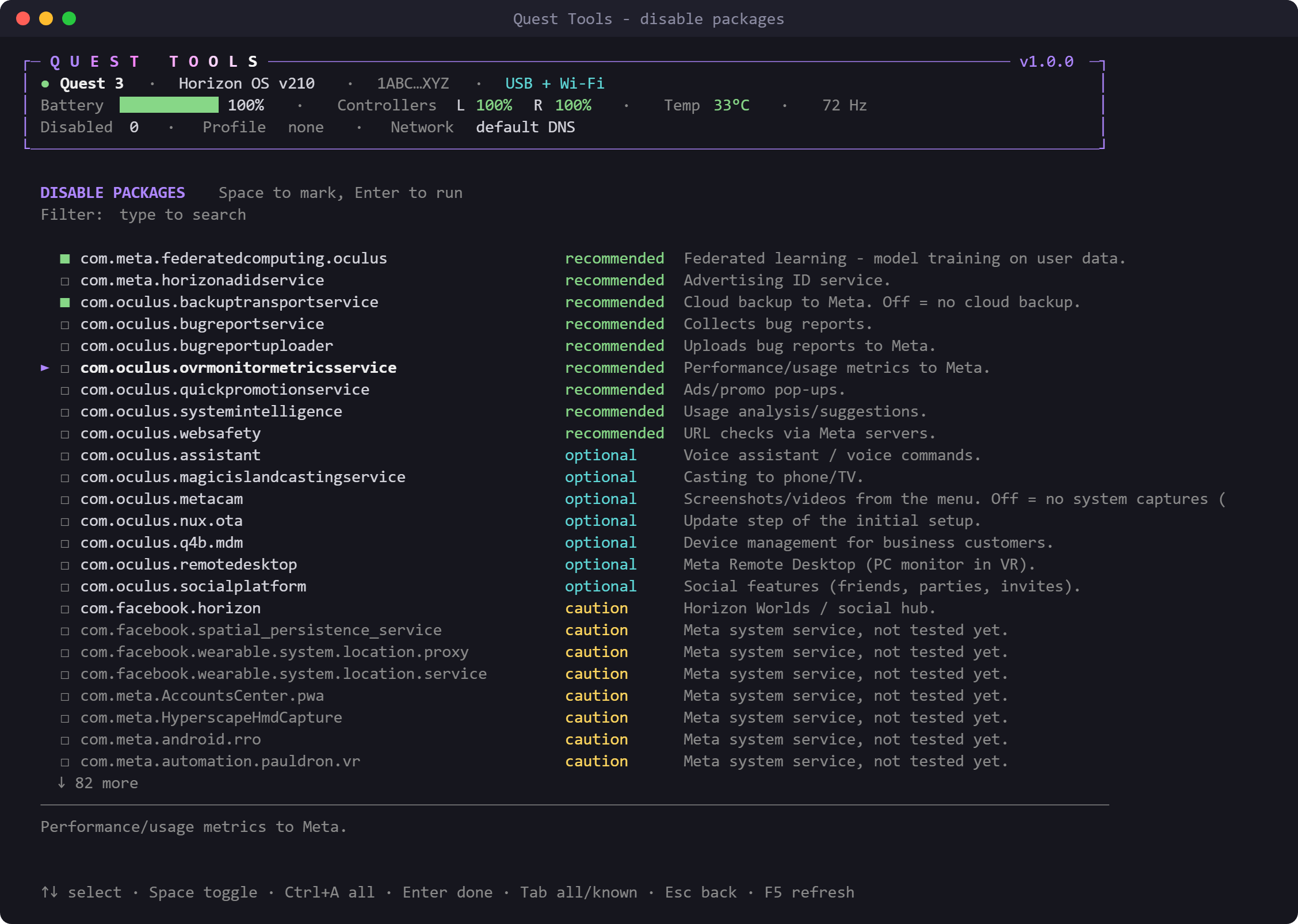
"com.oculus.ovrmonitormetricsservice": Entry(PRIVACY, "Performance/usage metrics to Meta."),
Every package lands in one of five buckets: recommended (telemetry, ads, data collection), optional (convenience features you may not use), caution (works, with visible side effects), keep (breaks core functions, only with --force) and protected (Android refuses anyway, so it is never even attempted). Packages the list doesn't know get a verdict from name heuristics, clearly marked as untested.
Lesson two: everything must be undoable
When the home panels vanished, I didn't remember the exact order of what I had disabled. That's a bad position to be in on a device you can't root and can't easily reflash.
In Quest Tools, every state change goes through one small module. It reads the current value, makes the change, checks it actually took effect, and only then writes a journal entry with the value from before:
def set_prop(dev, batch, key, value, dry=False):  # shortened
    before = get_prop(dev, key)
    if before == value:
        return "unchanged"
    if dry:
        return "dry"
    dev.sh(f"setprop {key} {quote(value)}")
    after = get_prop(dev, key)
    if after != value:
        raise AdbError(f"{key} was not accepted by the system (is {after!r}).")
    batch.record("prop", key, before, value)
    return "changed"
Package toggles, system properties, settings put/delete and per-user app removals all work the same way. Entries are grouped per operation, so Tools → Undo reverts a whole profile or a full settings restore in one go, not one line at a time. Every changing command also takes --dry-run, which shows the plan without touching anything.
A few settings are never restored at all: adb_enabled, adb_wifi_enabled, development_settings_enabled and friends. Restoring an old snapshot should never be able to cut off the connection you're restoring it over.
Lesson three: firmware updates quietly undo your work
A week later Horizon OS v210 arrived. Afterwards, the number of disabled packages on my headset was zero. The update had re-enabled every single one, without telling anyone.
Quest Tools now remembers the firmware version per headset. When it changes, the status screen warns about it and points straight to the profile check:
python -m questtools debloat check privacy   # what came back after the update?
python -m questtools debloat apply privacy   # put it back
check sorts the profile's packages into off as intended, active again and not installed, and also flags any keep package that is disabled, so a broken home screen gets diagnosed before you go hunting through logcat.
One adb call for the whole status bar
The status bar at the top of every screen shows battery, both controllers, temperature, refresh rate, connection type, the number of disabled packages and warnings like TRACKING OFF. Fetching that with one adb shell per value takes seconds, which is far too slow for a header that redraws all the time.
So all the queries are joined into a single shell call, with a marker line before each command, and the output is split back up on the PC:
def batch(self, cmds):
    parts = [f"echo '@@QT@@{key}'; {cmd} 2>/dev/null" for key, cmd in cmds.items()]
    r = self.sh("; ".join(parts))
# ...split r on the @@QT@@ markers into {name: output}getprop, dumpsys battery, thermal service, display refresh rate, paired controllers, disk, memory, Private DNS settings and the disabled package list all come back in one round trip, which is fast enough for the header even over Wi-Fi ADB.
A terminal UI with zero dependencies
I wanted the tool to run anywhere Python 3.10 and adb run, without a pip install. So there is no curses, no Rich, no Textual: just the standard library.
- Input:
msvcrton Windows and rawtermiosmode everywhere else, both mapped to the same key names (arrows, Page Up/Down, Home/End, Esc). - Drawing: a new screen overwrites the old one in place instead of clearing it first, and goes out in a single write, which keeps redraws flicker-free even in the classic Windows console.
- Glyphs: a small check script scans the source for any character the Windows console font can't draw, so the box drawing and markers never turn into empty squares on someone's machine.
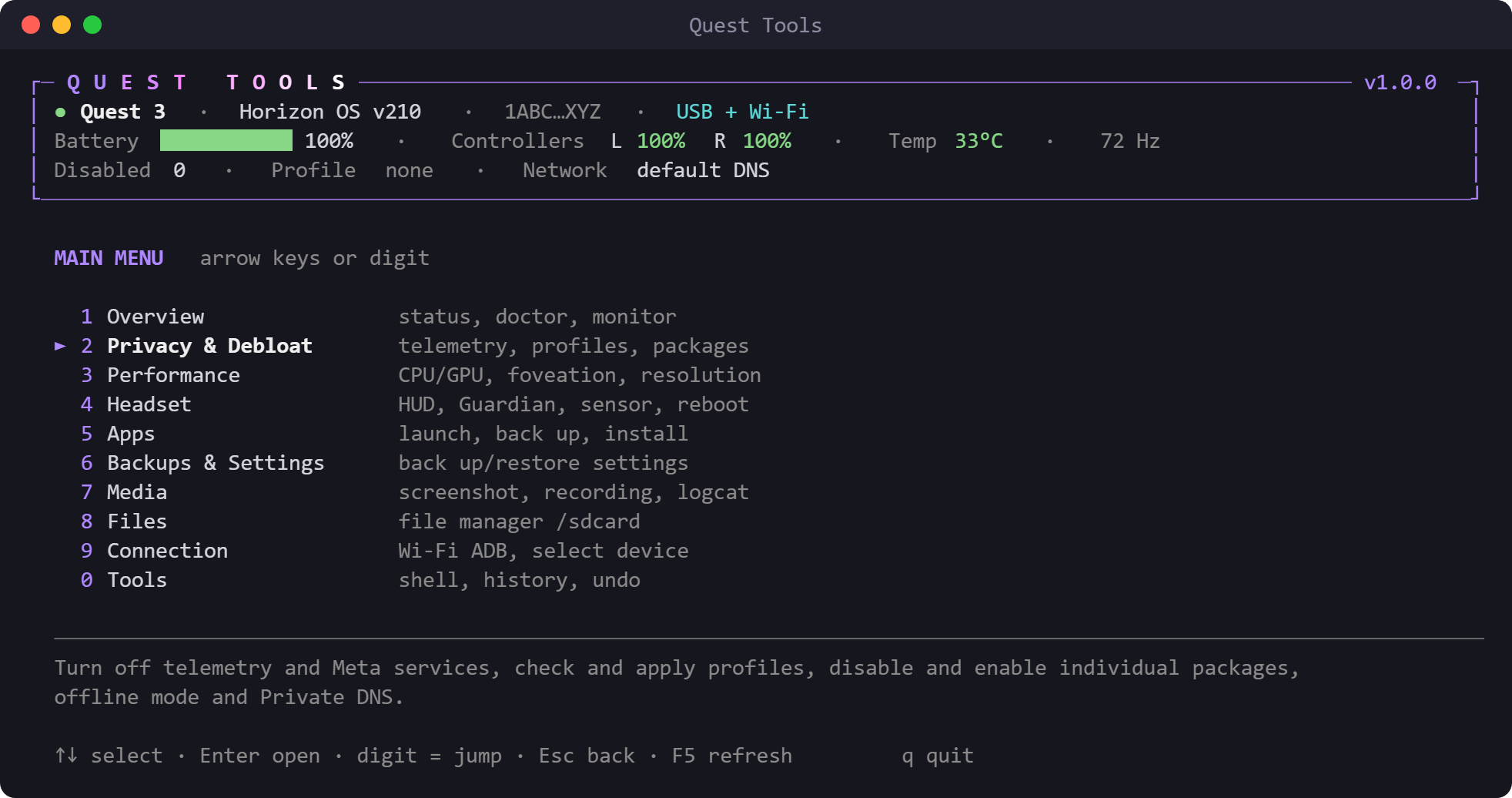
- Screenshots: the images in this post aren't screen captures. A demo script replays the UI with scripted keys and saves every frame with its ANSI colours, and a second script turns a frame into an SVG with serials and IPs masked.
Every menu entry is also a plain command with optional --json output, so the same code is just as usable from scripts as from the menu.
What it can't do
The Quest 3 can't be rooted. com.oculus.updater and the business device management service are protected packages, so Meta keeps the ability to push updates as long as the headset is online. Quest Tools says so instead of pretending otherwise, and offers two ways around it: an offline mode that points Private DNS at a host that doesn't exist (LAN streaming by IP keeps working), or a DNS filter on the router.
Performance overrides reset on reboot, internal app data under /data/data isn't readable without root, and the knowledge base reflects what I tested on my own headset with v209 and v210. Save games under /sdcard/Android/data are covered by the app backups, which is where most VR games keep them.
Try it
Quest Tools is MIT-licensed and on GitHub. On Windows, double-click Quest Tools.cmd. Anywhere else, run:
git clone https://github.com/Hemiize/quest-tools.git
cd quest-tools
python -m questtools
Make a settings snapshot and back up your apps first. That's the first thing the menu suggests anyway.